
Goods that have been received but not yet invoiced (RNI) drive your receipt accrual. Mastering the creation of this custom Workday report puts allows you to consolidate these outstanding items in a single view.
The PO Aging – RNI report lists each open purchase order line with what’s been ordered, received, invoiced, and returned, plus what’s still left to receive or invoice. Run it across your whole organization, or narrow it by company, purchase order type, item, and PO issued date range.
The build takes six steps, and each one matches a tab in the Workday report definition. Follow the settings as shown and you’ll have a working report by the end.
Step 1: Set Up the Report Definition
Create an Advanced custom report on the Purchase Order Lines data source, then fill in the header exactly as shown
- Data Source Filter: Purchase Order Lines Filter
- Report Tags: SKU: Procurement, Source: Configuration Catalog, Usage: Dashboards
Step 2: Add the 20 Columns
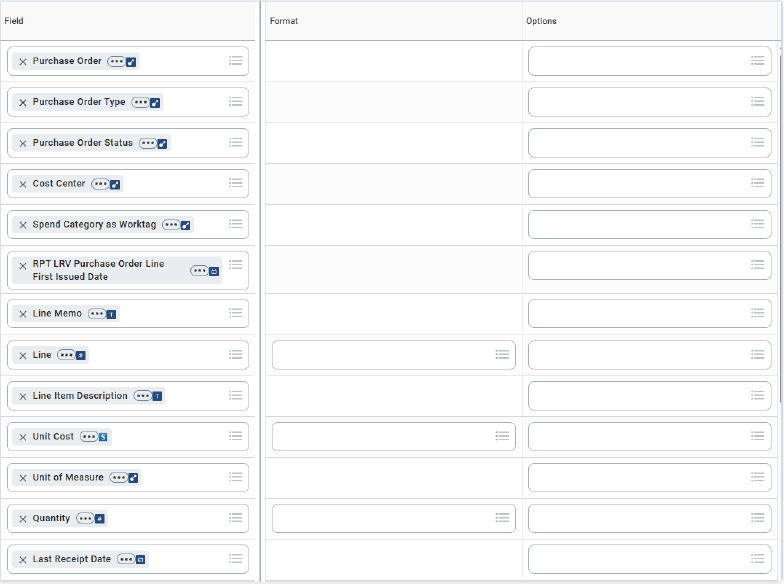
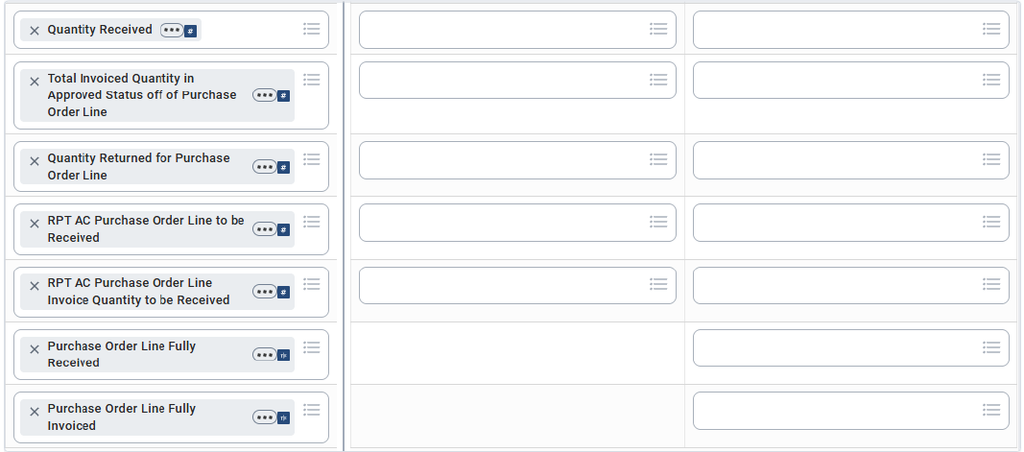
On the Columns tab, add each field in the order shown. Type a Column Heading Override only where one appears, leave Format and Options blank.
Columns 1 to 13
Figure 2a: Left view: Order, Business Object, Field, Column Heading Override
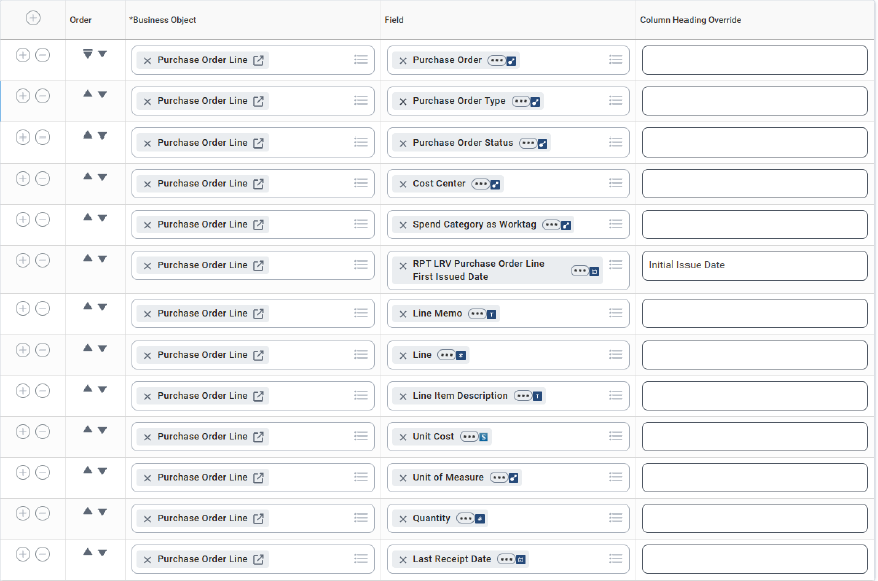
Figure 2b: Right view: Field, Format, Options
Columns 14 to 20
Figure 2c: Left view
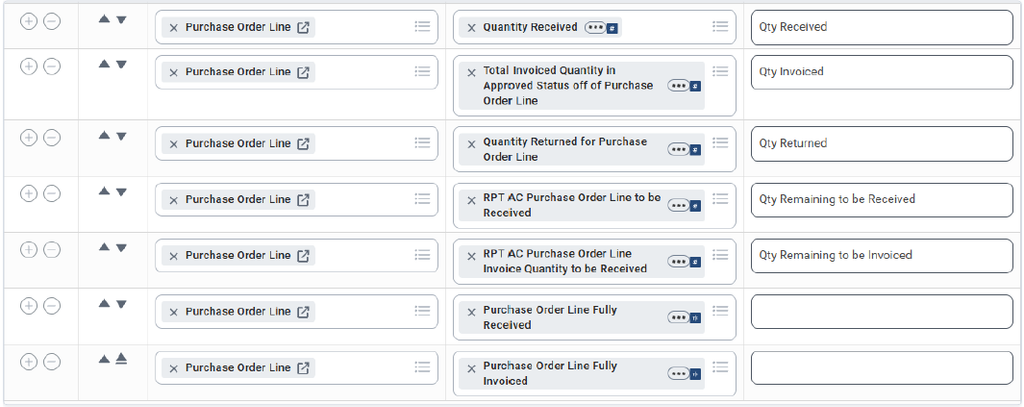
Figure 2d: Right view
Step 3: Set the Sort Order
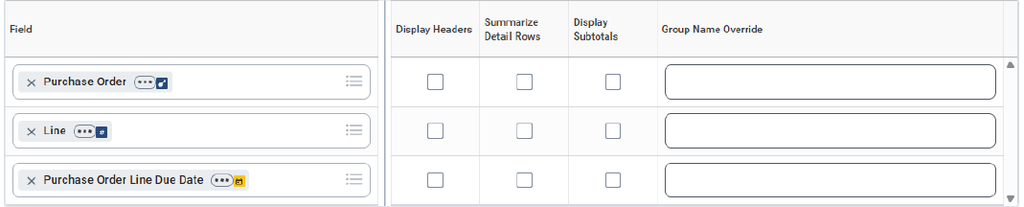
On the Sort tab, leave Sort by first accessible column unchecked and add three sort rows, all Alphabetical – Ascending. Leave every grouping checkbox unchecked.
Figure 3a: Left view: Order, Field, Sort Direction
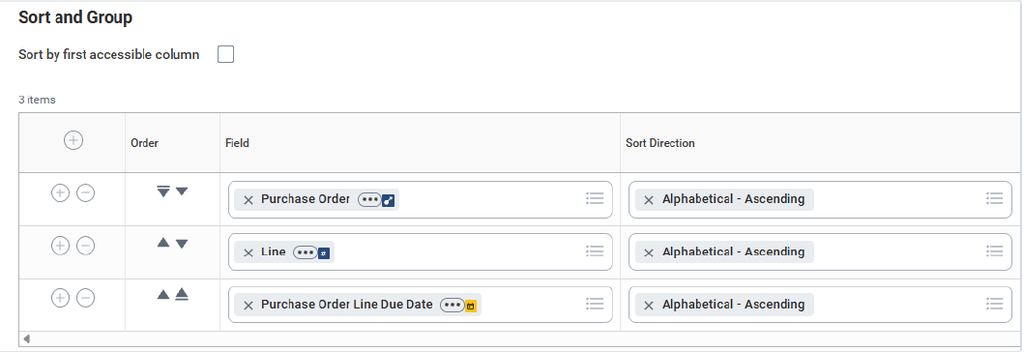
Figure 3b: Right view: Field, Display Headers, Summarize Detail Rows, Display Subtotals, Group Name Override
Step 4: Add the 9 Filter Conditions
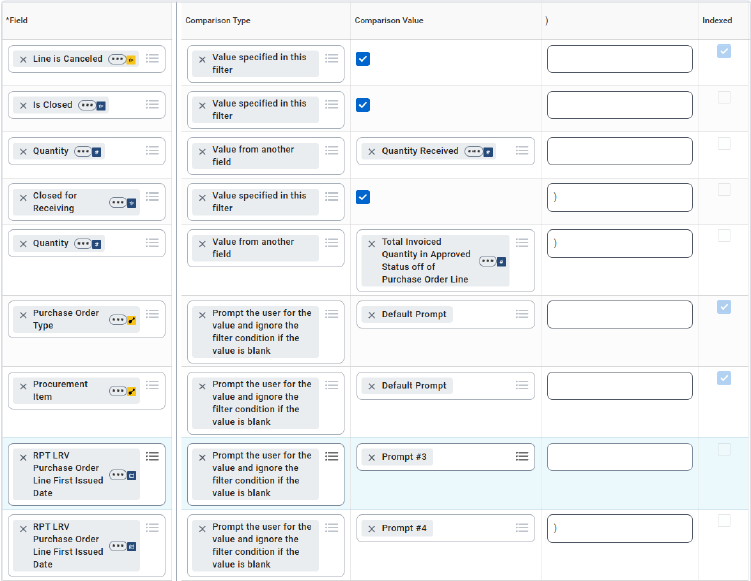
On the Filter tab, under Filter on Instances, add each condition in order. Type the opening (and closing) parentheses exactly as shown: conditions 3 to 5 group the receipt and invoice logic, and conditions 8 and 9 group the PO issued date range. Condition 8 uses And, and condition 9 closes with a single.
Figure 4a: Left view: Order, And/Or, (, Field, Operator)
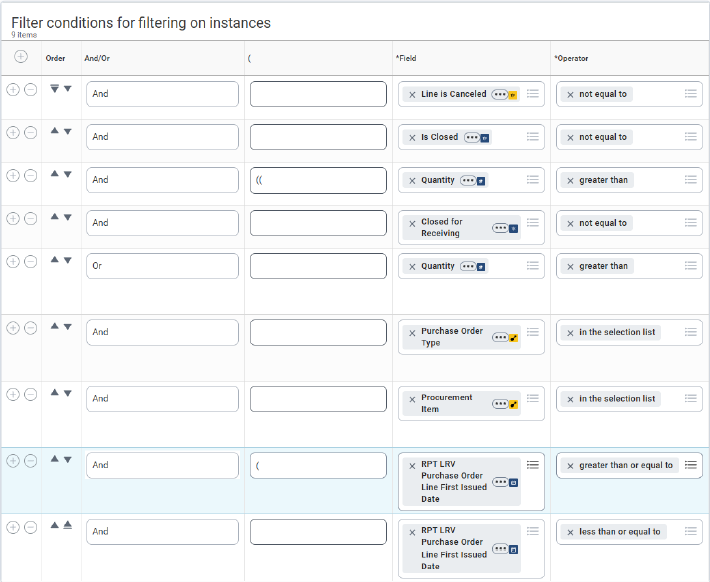
Figure 4b: Right view: Field, Comparison Type, Comparison Value, ), Indexed
Step 5: Configure the Prompt Defaults
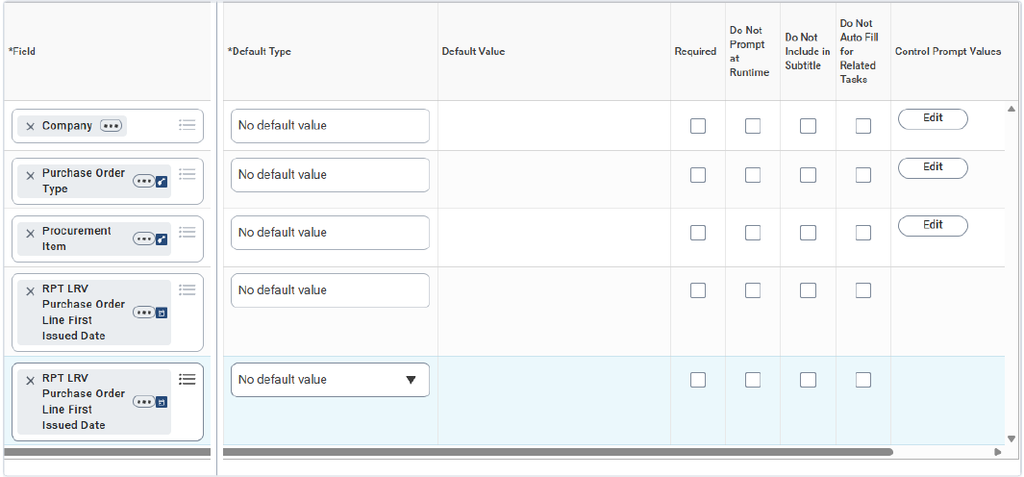
On the Prompts tab, set up the five prompts in the Prompt Defaults grid. Every prompt uses No default value, and all four checkboxes stay unchecked. Click OK to save the report.
Figure 5a: Left view: Order, Field, Prompt Qualifier, Label for Prompt
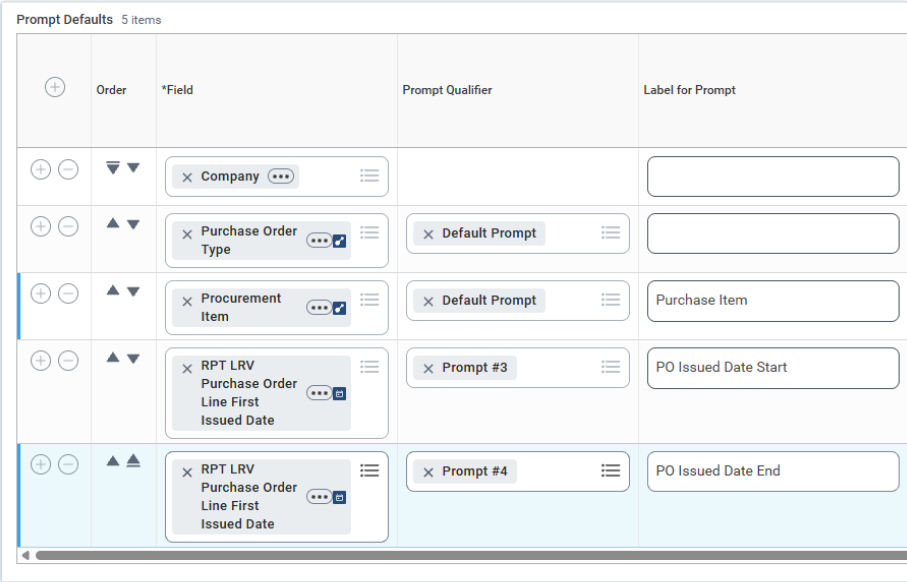
Figure 5b: Right view: Field, Default Value, Checkboxes, Control Prompt Values
Get Help with Workday SCM
By the end of these steps, you’ve built the PO Aging – RNI custom report in Workday: a report definition on the Purchase Order Lines data source, 20 columns, a sort order, nine filter conditions, and five prompts. Upon running this report, the user sees each row as an open purchase order line showing what’s been ordered, received, invoiced, and returned, as well as what is still left to receive or invoice.
Leave any prompt blank to skip that filter, or enter a company, purchase order type, item, or PO issued date range to narrow the results.
The report shows which received lines are still waiting on an invoice. Getting those lines invoiced sooner depends on where the delays start.
RPI helps healthcare organizations get more out of Workday SCM. If your team is working through receipt accruals in Workday, or you want a second opinion on your procurement reporting, our consultants can help. Reach out to us at questions@rpic.com and we’ll connect you with the right person on our team.