
Purchase orders don’t always get fully used. Take for example when a supplier can’t fill a line, or a project gets canceled. The purchase order (PO) keeps carrying an open balance for money that will never be spent. Left alone, that balance sits on the PO while receipts and invoices can still be processed against it.
Workday SCM lets buyers close an entire PO, or just a single line, right from the Related Actions menu. Closing zeros out the remaining open balance and blocks any further receipts or invoices against it.
Below we cover how to find your PO with the Find Purchase Orders report and close the whole order or a single line.
Two checks before you close anything. First, confirm the PO is no longer needed. Second, make sure any received items on the line have already been invoiced. If you close the PO or line for received goods before the invoice is received, you won’t be able to pay against that line.
Ready to close one out? Here’s how to do it in Workday SCM:
Step-by-Step: Closing a Purchase Order/PO Line in Workday SCM
Step 1. Launch the Find Purchase Orders Report
Navigate to Your Organization’s Workday tenant and log in. Click the Search field, type “find purchase order”, and select the Find Purchase Orders report from the results.
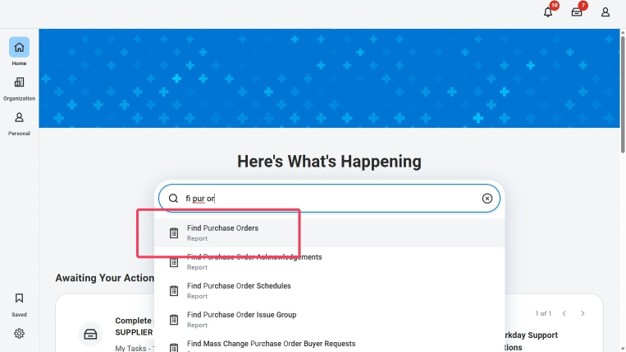
Step 2. Locate Your Purchase Order
If you know the PO number, enter it directly in the Purchase Order field. If not, use the remaining filter fields to narrow your search. Click OK to run the report.
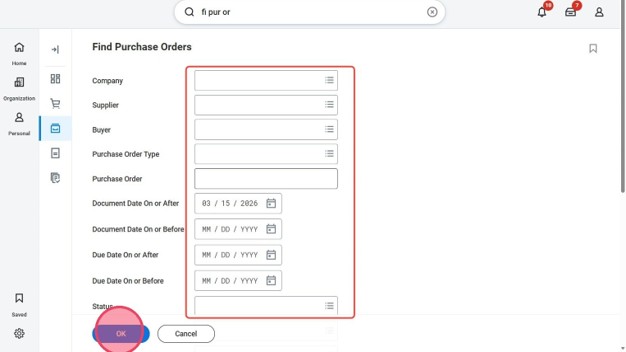
Step 3. Choose the Whole PO or a Single Line
Click the Related Actions button (twinkie icon) next to the magnifying glass on your PO, hover over Purchase Order, and click Close. To close an individual line, click the “Close Lines” option and select the lines you wish to close.
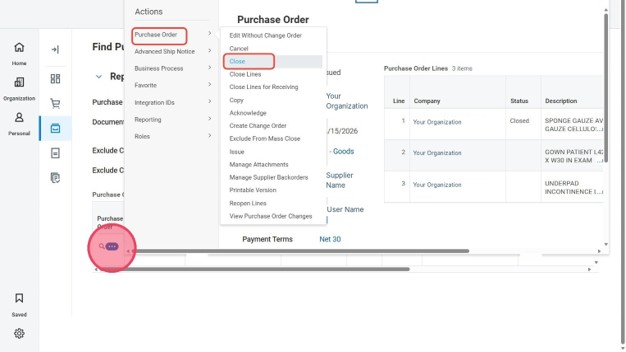
Step 4. Record Why You’re Closing It
Select your reason for closing the PO from the dropdown, then click OK.
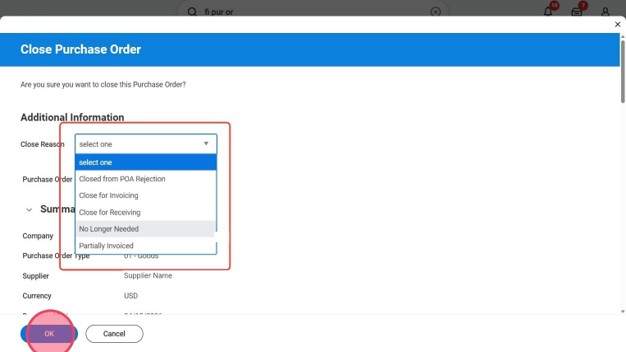
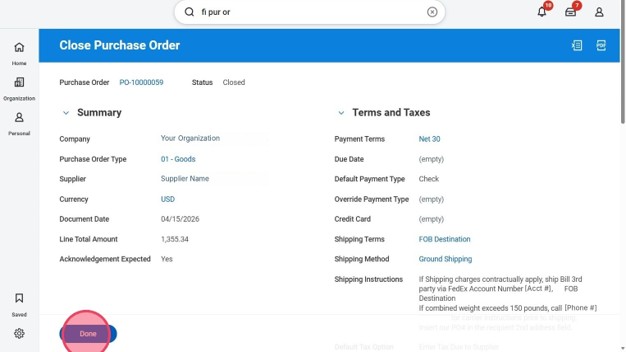
Step 5. Complete the Close
Click Done to complete the PO closure.
Get Help with Workday SCM
By the end of these steps, you’ve found your PO with the Find Purchase Orders report, closed the whole order or a single line, and recorded why. Workday zeroed out the remaining open balance and stopped any further receipts or invoices from being processed against it, so the PO no longer shows money you won’t spend.
Because a closed PO can’t take new invoices, confirm that anything received has been invoiced before you close. Run the same steps whenever an order is finished or a line will never ship, and your open PO list stays a list of what’s still open. Multiply that across every buyer on your team and every PO in flight, and the upkeep adds up quickly.
RPI helps healthcare organizations get more out of Workday SCM. If your buyers are working through procurement in Workday, or you want a second set of eyes on how your team uses it today, our consultants can help. Reach out to us at questions@rpic.com and we’ll connect you with the right person on our team.