
When a purchase order (PO) needs to change after it’s been issued, the update often gets agreed over email or a phone call while the PO itself still shows the original terms. That means the price or quantity on the PO no longer matches what you and your supplier agreed to, and the gap tends to surface at invoice time or during an audit.
Thankfully, with the Create Change Order task in Workday SCM, you can easily amend an issued PO right in the system and attach the reason for the change to the record.
Below we detail how to create a change order (also called an amendment), from searching for the task in your Workday tenant to choosing a change reason and submitting your updates.
One thing to know before you start: change orders are only available for POs that have been “Issued,” so confirm your PO’s status first. Once you submit a change order, the PO will need to be re-issued.
Ready to get started? Read on below to find out how to create a change order in Workday SCM:
Step-by-Step: Creating a Change Order in Workday SCM
Step 1. Launch the Create Change Order Task
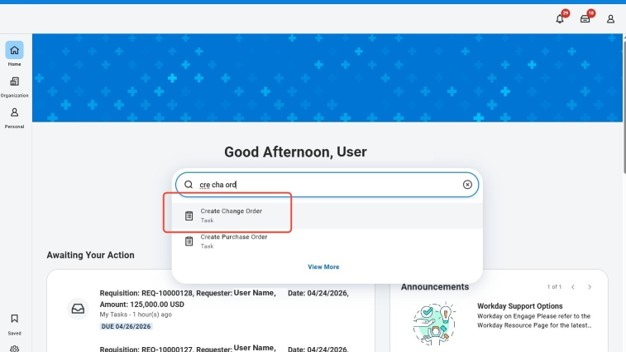
Navigate to your organization’s Workday tenant and log in. Click Search field, type “create change order,” and select Create Change Order from the results.
Step 2. Locate the Purchase Order
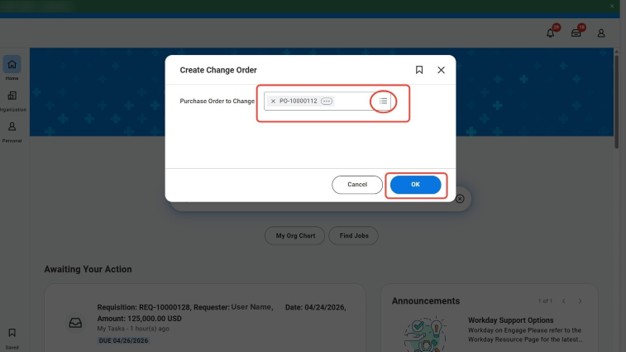
Enter your PO number directly or click the dropdown to search for the PO. Once you find the desired PO, click Ok.
Step 3. Document the Reason for the Change
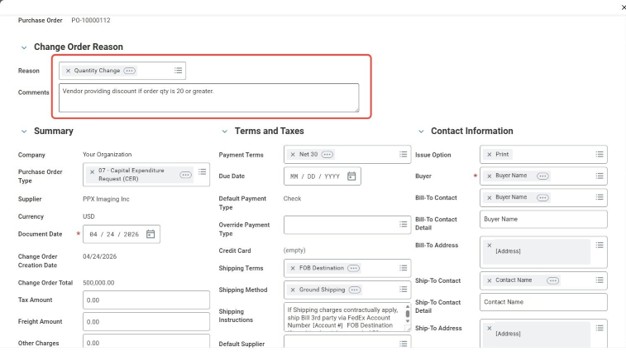
Select the Change Reason. Although a comment is not required, adding one will provide context for future review and audit purposes.
Step 4. Find the Line to Adjust
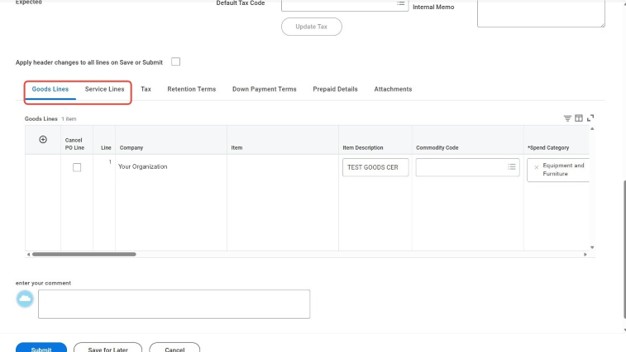
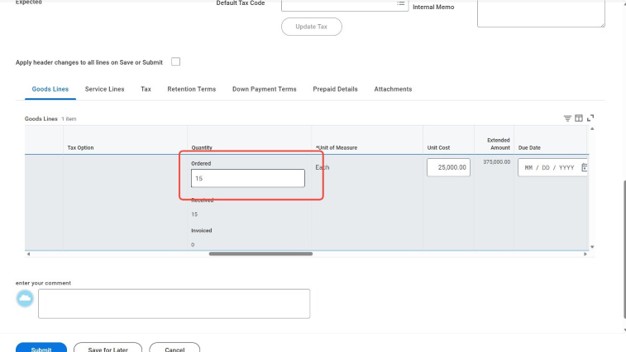
Click the Goods Lines or Service Lines tab to adjust your order. Use the scroll bar to locate the item attribute you wish to change.
Step 5. Update the Line Item Attributes
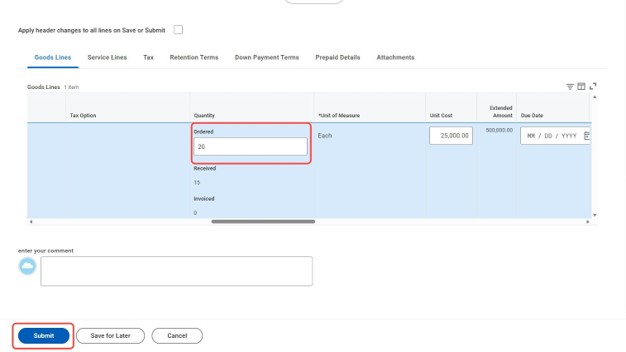
Update the relevant field. For example, adjust the quantity, price, or unit of measure as needed.
Step 6. Submit the Change Order
Once all adjustments are complete, click Submit. Note that the PO will need to be re-issued if a change order is created.
Get Help with Workday SCM
And there you have it! A step-by-step guide on how to create a purchase order, change order in Workday SCM. RPI has spent over 25 years helping healthcare organizations get more out of SCM systems, from procurement setup to buyer training.
If you work in healthcare and need assistance maximizing use of Workday SCM or need further guidance on how to create a change order, RPI can help. Reach out to us at questions@rpic.com and we’ll connect you with the right person on our team.