
When a supplier invoices at a higher price than the purchase order (PO), someone on your accounts payable (AP) team has to catch it. Checking every invoice line by hand takes time, and with a full queue, a variance can easily be missed.
Workday SCM can flag those lines automatically. With a match condition rule, you define what counts as an unacceptable price variance using a percentage and a dollar amount, and any invoice line that meets the condition fails the match and routes as a match exception. Using both thresholds keeps small-dollar differences from creating exceptions.
Below we detail how to build the rule, from finding the task in the Workday search bar to confirming your conditions in the Derived Logic field.
Before you start, have your approved percentage and dollar tolerances on hand, and make sure you have security access to configure Supplier Accounts match rules, which typically sits with AP or Procurement configuration roles. Also keep in mind that a condition rule does nothing on its own. When you finish, add it to a match rule in the active match rule set.
Keep your tolerances handy and follow along in your tenant:
Step by Step: How to Create a Match Condition Rule in Workday SCM
Step 1: Open the Task
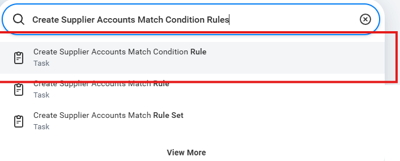
Find the Create Supplier Accounts Match Condition Rule task from the Workday search bar. To do so, type Create Supplier Accounts Match Condition Rule in the Workday search bar. Then select the result labeled Create Supplier Accounts Match Condition Rule (Task). Be careful as three similar tasks will appear. Match Condition Rule defines the test. Match Rule and Match Rule Set are separate tasks used later to put the condition to work.
Step 2: Define the Rule and Its Conditions
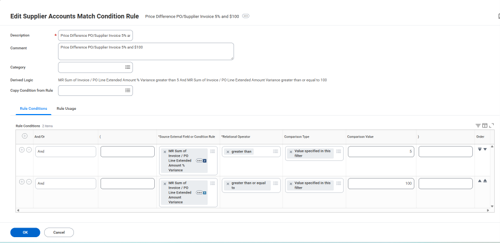
Name the rule, add the variance conditions, and click OK. Start by completing the header fields. Here’s what your table should look like:
| Field | Required? | What to enter |
| Description | Yes | A clear name stating the tolerance. Example: Price Difference PO/Supplier Invoice 5% and $100 |
| Comment | No | Optional notes. Repeating the description is fine. |
| Category | No | Leave blank unless your organization groups rules by category. |
| Copy Condition from Rule | No | Pick an existing rule to copy its conditions as a starting point. Leave blank to build from scratch. |
On the Rule Conditions tab, click the + icon to add a row for each condition. For a percentage AND dollar tolerance, add two rows:
| Row | Source External Field or Condition Rule | Relational Operator | Comparison Type | Comparison Value |
| 1 | MR Sum of Invoice / PO Line Extended Amount % Variance | greater than | Value specified in this filter | 5 |
| 2 | MR Sum of Invoice / PO Line Extended Amount Variance | greater than or equal to | Value specified in this filter | 100 |
Set And/Or to And on both rows. Leave the parenthesis columns blank. Enter the percentage as a whole number (5, not 0.05).
Check the read-only Derived Logic field. It should read as a plain sentence, for example: “MR Sum of Invoice / PO Line Extended Amount % Variance greater than 5 And MR Sum of Invoice / PO Line Extended Amount Variance greater than or equal to 100.” Click OK.
How the Example Rule Behaves
With And, a line is flagged only when both thresholds are met, so small-dollar variances do not create exceptions.
| Invoice line vs. PO line | % variance | $ variance | Result |
| PO $1,000, invoiced $1,120 | 12% | $120 | Flagged (both met) |
| PO $200, invoiced $260 | 30% | $60 | Not flagged ($ under 100) |
| PO $10,000, invoiced $10,300 | 3% | $300 | Not flagged (% not over 5) |
Get Help with Workday SCM
By the end of these steps, you’ve built a match condition rule that defines an unacceptable price variance. A line is flagged only when the invoice price differs from the PO price by more than your percentage and by at least your dollar amount. Invoice lines that meet the condition fail the match and route as match exceptions, and small-dollar differences stay out of the queue.
A condition rule does nothing on its own, so the last move is to put it to work. Add it to a match rule using the Create Supplier Accounts Match Rule task, make sure that match rule is in the active match rule set, and use the Rule Usage tab on the condition rule to confirm where it is used.
Getting tolerances approved is one job. Getting every rule working together in your active match rule set is another.
RPI helps healthcare organizations get more out of Workday SCM. If your AP and procurement teams are working through invoice matching in Workday, or you want a second set of eyes on how your rules are set up today, our consultants can help. Reach out to us at questions@rpic.com and we’ll connect you with the right person on our team.