
Quick Offer is an Infor HR Talent feature that gives recruiters the ability to define, create, and send an offer letter to a candidate in one click.
The setup process is minimal, only a one-time job for an administrator. You’ll enable the feature, then assign Quick Offer to a step in your hiring workflow. From there, recruiters can extend offers straight from the offer step and follow each one through approval and the candidate’s response.
Before you start, make sure Offer Letter Templates are enabled and your organization uses a Configurable Hiring Workflow.
Implementation Steps
Step 1: Enable the Feature Toggle
Navigate to System Administration > Utilities > Feature Toggles to enable Streamlined offer process for recruiters

Step 2: Configure Organization Defaults
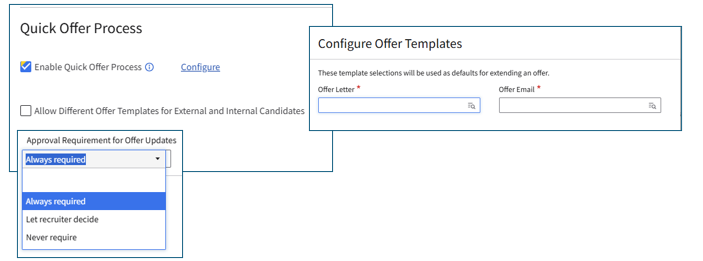
Navigate to Talent Acquisition > Administration > select an Organization > enable Quick Offer Process and Configure your defaults as desired
- Note: Offer Letter Templates must be enabled
Step 3: Assign Quick Offer to a Workflow Step
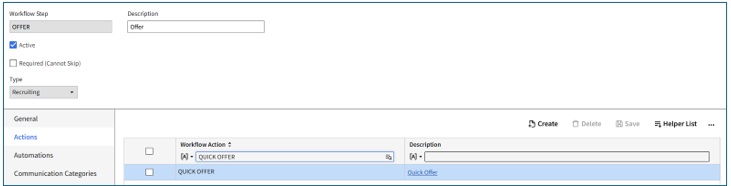
Navigate to Talent Acquisition > Administration > Hiring Workflows > select Hiring Workflow > assign Quick Offer to the appropriate step e.g Offer
Processing an Offer
Step 1: Launch Quick Offer
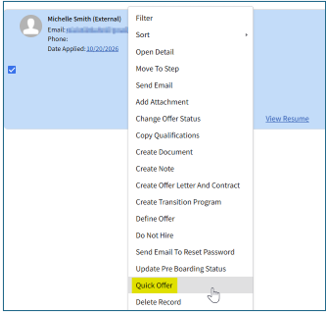
Select a qualified candidate and move to the offer workflow step > select Quick Offer action
Step 2: Define & Extend the Offer
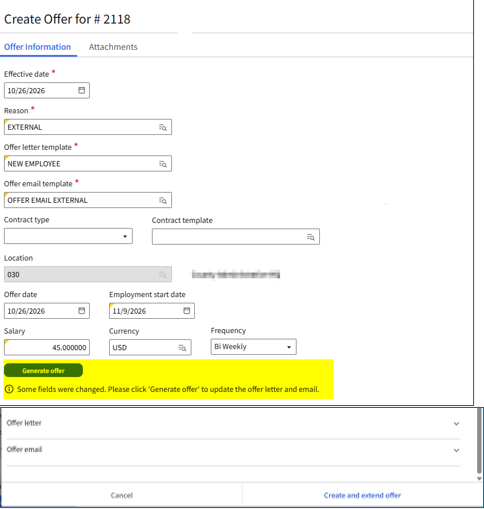
Define the offer criteria > review the defined offer and email > Create and Extend Offer
Notes:
- If you made changes to the field above “Generate Offer”, a message will appears prompting you to click “Generate Offer” to refresh the preview below.
- Add attachments as needed and select “include in email” where appropriate.
Step 3: Complete Offer Approval
If you have an approval process defined for the Offer process this will be triggered. Once the offer is approved, the status will update to Extended.

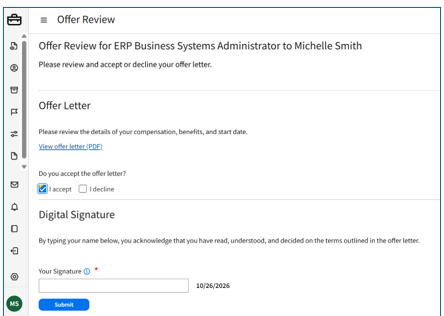
Step 4: Candidate Receives the Offer
The candidate will receive the email and take action to either accept or decline their offer
Step 5: Viewing the Offer Email
The recruiter can view the offer email in the Correspondence tab
Step 6: Confirming Final Offer Status
Once the candidate accepts or declines, the offer status is updated
Important Notes
- Prerequisite: Configurable Hiring Workflow
- Email Template: {OfferReviewLink} variable added to the email body
Get Help With Infor CloudSuite HCM
By the end of these steps, you have successfully toggled on the Quick Offer feature, configured your organization’s default process, and assigned Quick Offer as a step within your hiring workflow. Your recruiters can now select a qualified candidate, define offer parameters, and extend it, all with one click.
Quick Offer is just one feature. Getting the most out of your Infor HCM system requires a closer look at what your team’s workflows look like on a daily basis. RPI’s upcoming Infor HCM Optimization Summit gives your team the perfect opportunity to identify unutilized functionality and map out the implementation of advanced HCM & WFM modules. To learn more and save your seat, click the link below.

If your recruiters are extending offers in Infor, or you want a second opinion on how your team is set up in Talent Acquisition, our consultants would love to help. Reach out to us at questions@rpic.com and we’ll connect you with the right person on our team.