
When a supplier invoice fails matching because its unit price doesn’t agree with the purchase order (PO) line, it lands in the match exception queue. From there it waits on a buyer to work out why the two prices differ and what to do about it.
Workday SCM keeps that fix in one place. The Match Exception Report shows the PO unit cost next to the invoice unit cost, along with the variance. When the invoice price is the right one, a change order updates the PO so it agrees with the supplier invoice.
Below we detail how to find the exception in the Match Exception Report and correct the price with a change order.
Before you begin, confirm the invoice price is correct, for example against the contract or supplier quote. If the supplier billed the wrong price, contact the supplier for a corrected invoice or credit instead of changing the PO.
With the invoice price confirmed, here’s how to fix the exception:
Step by Step: How to Correct a Price Variance in Workday SCM
Step 1: Find the Price Variance Exception
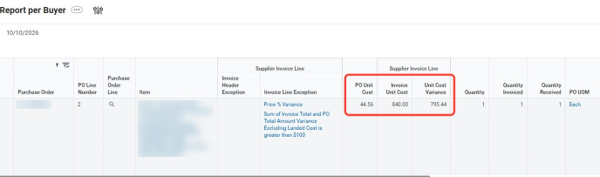
Use the Match Exception Report to identify the PO line and the correct price. Open the Match Exception Report and find a line with a Price % Variance exception. Compare PO Unit Cost, Invoice Unit Cost, and Unit Cost Variance. Note the PO Line Number and the invoice unit cost.
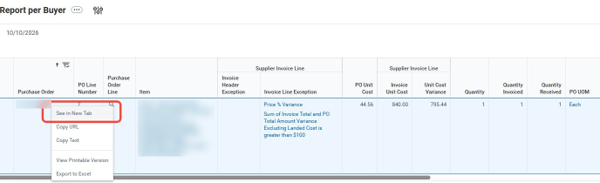
Right-click the purchase order link (or its related actions icon) and select See in New Tab. Keeping the report open lets you check the PO line and invoice cost as you work.
Step 2. Create the Change Order
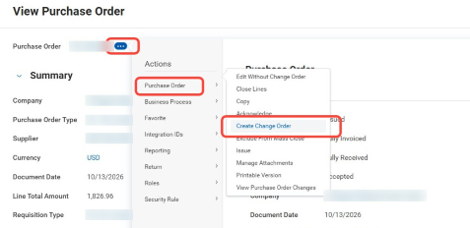
Start a change order from the purchase order and record why. On the new purchase order tab, click the related actions icon next to the PO number, hover over Purchase Order, and select Create Change Order.
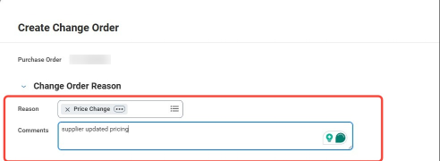
Under Change Order Reason, select a Reason (for example, Price Change) and add Comments explaining the update.
Step 3. Update Price and Submit
Correct the unit cost on the exception line, then submit for approval. Scroll to the goods lines and find the PO line with the exception. Check the report tab if you need the line number.
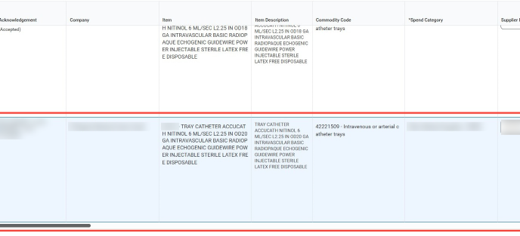
In the Unit Cost field, replace the old price with the correct invoice price.
| Before | After |
| Original unit cost: 44.56 | Updated unit cost: 840.00, then click Submit |
Click Submit. Use Save for Later only if you need to come back to it. After the change order completes any approval workflow, reissue the purchase order so the supplier receives the updated price.
Get Help with Workday SCM
By the end of these steps, you’ve found the price variance exception in the Match Exception Report, noted the PO line and the correct invoice price, and submitted a change order that updates the unit cost on the PO. Once the change order clears approval and the PO is reissued, the PO agrees with the supplier invoice and the supplier has the updated price.
If you haven’t set up the rule that flags these exceptions yet, see how to create a match condition rule for price variance.
Fixing one exception handles one invoice. Reducing how many reach the queue means looking at where the price differences start.
RPI helps healthcare organizations get more out of Workday SCM. If your buyers and AP team are working through invoice exceptions in Workday, or you want a second set of eyes on where your price differences are coming from, our consultants can help. Reach out to us at questions@rpic.com and we’ll connect you with the right person on our team.